









Network Diagnostics:
If the game lags, crashes or won't connect to the server, the cause is usually not the game itself but the internet — somewhere along the way between your computer and our server. Finding that spot by hand is hard. That's what the Network Diagnostics button in the launcher is for: it checks your connection on its own and puts together a report you can send to support.
Why you need it
Support finds the cause faster. Instead of "my game is lagging", our agents see exact numbers: where data gets lost and how long it takes to reach the server.
You can understand the problem yourself. Sometimes a simple step fixes it — turning off your VPN or switching to a different internet connection.
Nothing to install. The check is built into the launcher and takes a couple of minutes.
How it works
While you play, your computer constantly exchanges small chunks of data with the server — packets. A packet's route is like a trip with transfers: from your router, through your internet provider and several intermediate nodes, to the game proxy — the "front door" to our server.
Diagnostics sends test packets along this route and checks:
whether they all arrive. If some get lost on the way, that's "packet loss". It's what makes the game stutter and your character "teleport";
how long the trip takes. This is "ping", or latency. The higher it is, the later the game reacts to your actions;
whether the "door" is open. The game connects to the server through specific ports. If a VPN, antivirus or your provider has closed a port, ping can look fine and you still won't be able to log in.
How to run diagnostics
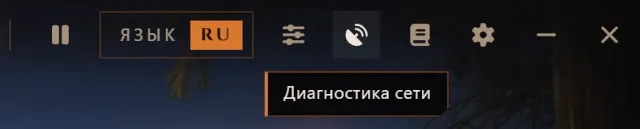
In the top bar of the launcher, click the antenna icon button — Network Diagnostics.
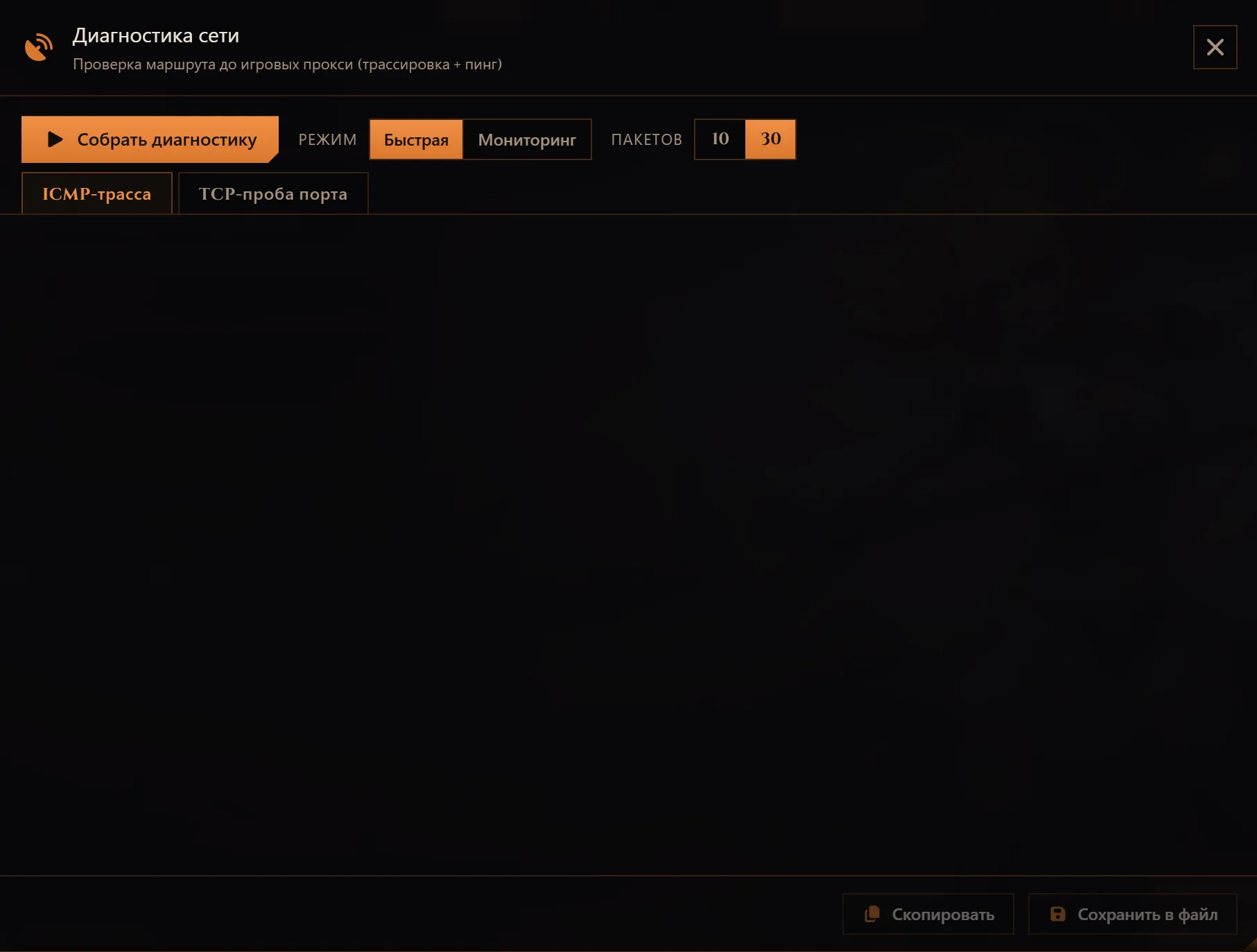
Choose a mode:
Quick — if the game is lagging or won't connect right now;
Monitoring — if lag happens from time to time and is hard to catch.
Click Collect diagnostics.
In Monitoring mode, just play as usual after that: diagnostics will record the state of your network in the background. You can close the window, but don't close the launcher. Click Stop only once the lag has already happened.
Click Save to file or Copy and send the result to support.
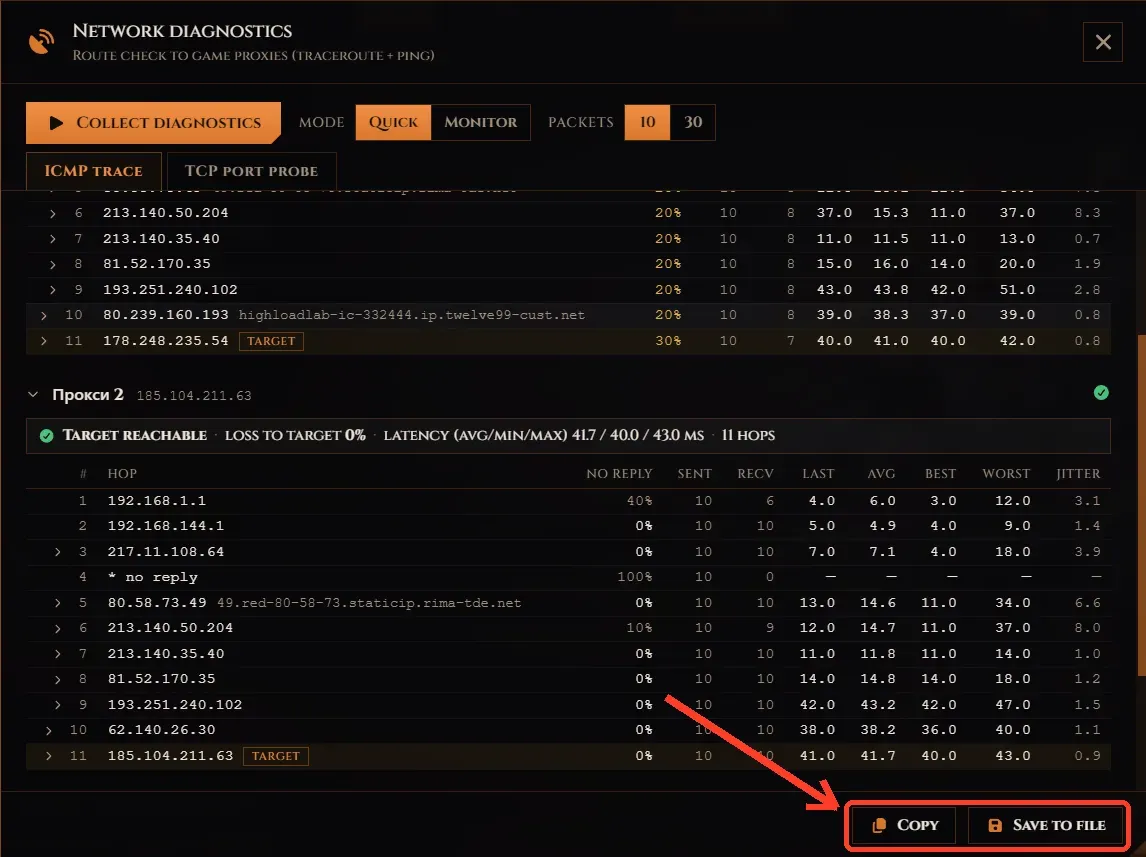
You don't have to make sense of the numbers — support agents will read the result.
What you can try yourself
Turn off your VPN or proxy and check again.
Restart your router.
Connect your computer with a cable instead of Wi-Fi.
Temporarily disable your antivirus or firewall.
Share the internet from your phone and check again. If everything works that way, the problem is with your provider or your home network.
Where to get help
If the problem is still there, contact support and attach the diagnostics result. Include:
what's happening (lag, crashes, can't log in);
when it started;
whether you use a VPN;
what internet you have: your provider and connection type (cable, Wi-Fi or mobile).